Think about it: when a potential customer wants to visit your physical store, office, or event, what’s the first thing they look for? Directions. An interactive map embedded directly on your contact page or location section eliminates friction, allowing users to visualize your location, get directions instantly, and even explore the surrounding area without ever leaving your site. This level of convenience is invaluable.
Why Embed Google Maps on Your Website?
- Enhanced User Experience (UX): Users can easily find your location, plan their visit, and explore nearby landmarks. This reduces bounce rates and keeps visitors engaged longer.
- Improved Local SEO: Google favors websites that provide clear, accurate, and easily accessible location data. An embedded map, especially when coupled with correctly implemented schema markup and a Google My Business profile, can significantly improve your local search rankings.
- Increased Credibility and Trust: A visible, interactive map signals transparency and professionalism, assuring customers that your business is legitimate and easy to find.
- Visual Appeal: Maps add a dynamic and visually appealing element to your website, breaking up text and making your pages more engaging.
- Reduced Inquiries: By providing instant access to location information, you can reduce the number of calls or emails asking for directions, freeing up your staff.
Understanding Google Maps Embed Options: iFrame vs. API
There are primarily two ways to embed Google Maps on your website: using a simple iFrame embed code or leveraging the more powerful Google Maps Platform APIs. Each method serves different needs and offers varying levels of customization.
The iFrame Method: Quick and Easy
The iFrame method is the simplest and quickest way to get a basic map on your site. It’s ideal for displaying a single location with standard map features. You don’t need any coding knowledge or an API key for this approach.
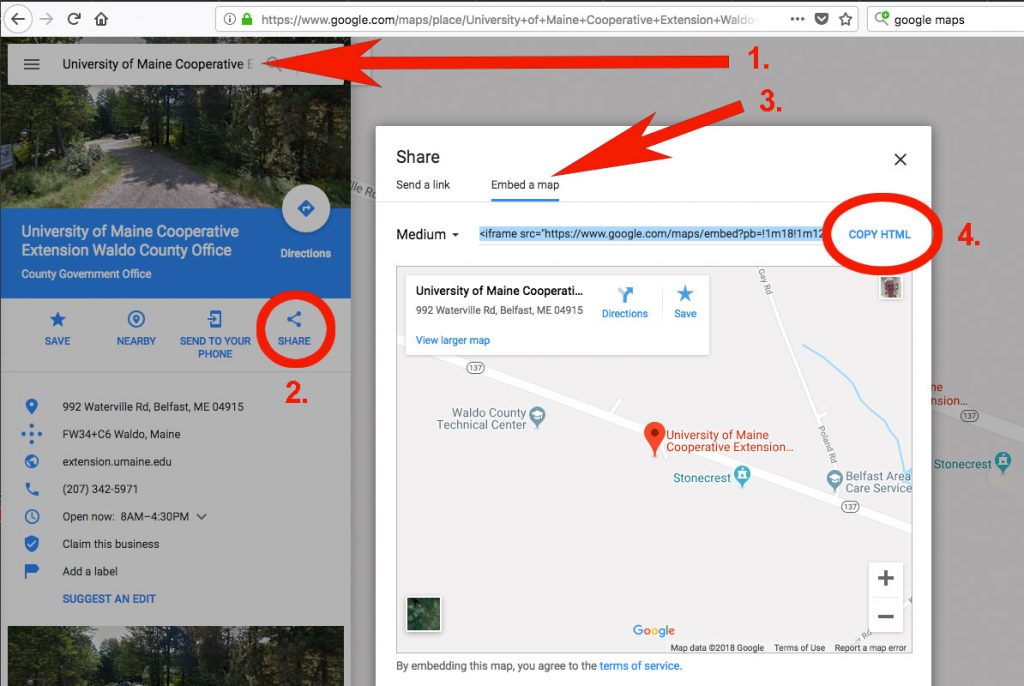
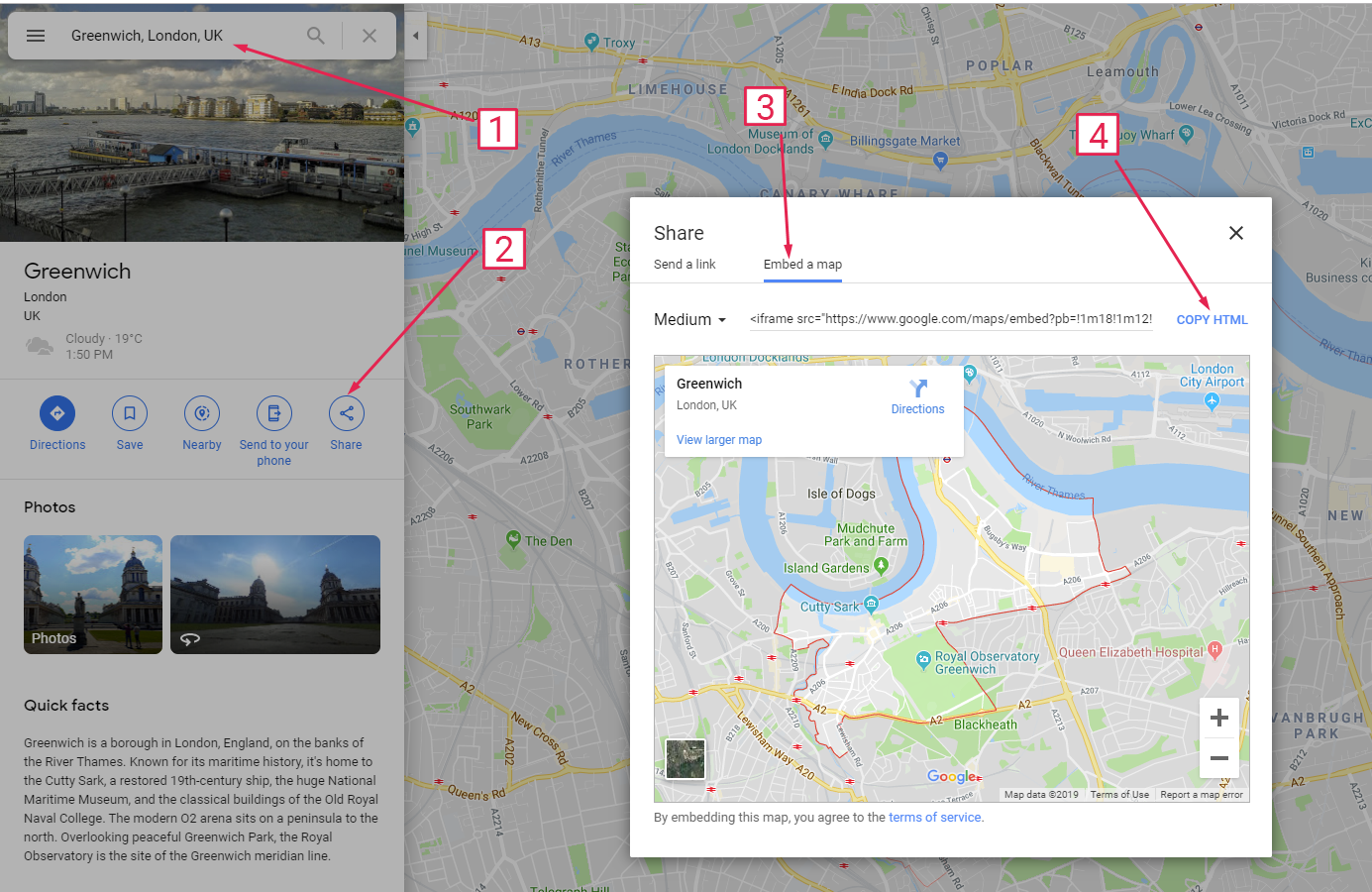
- Go to Google Maps: Open your web browser and navigate to maps.google.com.
- Search for Your Location: Enter the address or name of the place you want to embed in the search bar.
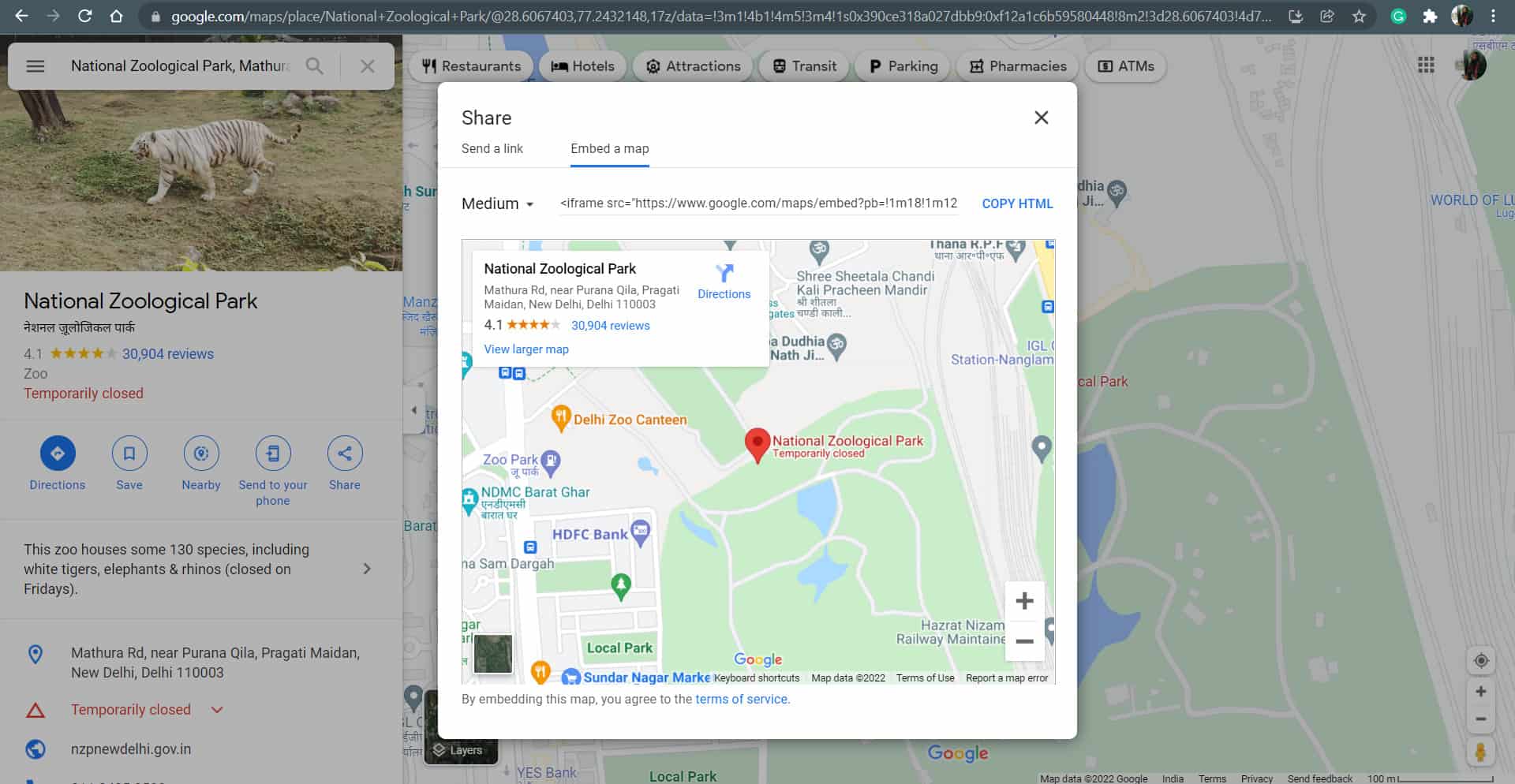
- Find the Share Option: Once the location is displayed, click on the ‘Share’ button (it often looks like a bent arrow or three dots).
- Select ‘Embed a map’: In the pop-up window, choose the ‘Embed a map’ tab.
- Choose Map Size: You’ll see options for map size (Small, Medium, Large, or Custom). Select the one that best fits your website layout.
- Copy the HTML Code: Google Maps will generate an HTML “ code. Copy this entire code.
- Paste into Your Website: Go to the HTML editor of your website (e.g., in your CMS like WordPress, Squarespace, or directly in your HTML file) and paste the copied code where you want the map to appear.
The Google Maps Platform APIs: Advanced Customization and Functionality
For developers or those requiring highly customized maps, multiple locations, dynamic data, or advanced features like routing, heatmaps, or location-based services, the Google Maps Platform APIs are the way to go. This method requires an API key and some coding knowledge but unlocks immense possibilities.
- Maps JavaScript API: The most common API for dynamic web maps, allowing full control over map appearance, markers, info windows, and user interactions.
- Maps Static API: For embedding non-interactive, static map images. Useful for situations where interactivity isn’t needed and performance is critical.
- Embed API: A simplified API that offers more control than the iFrame but less than the JavaScript API, allowing dynamic generation of embed URLs.
Customizing Your Embedded Google Map
Whether using an iFrame or an API, there are several ways to customize your map’s appearance and functionality to better suit your brand and user needs.
- Width and Height: Modify the
width=""andheight=""attributes to control the map’s dimensions. For responsiveness, consider using CSS. - Zoom Level: The
zoom=parameter in the URL within thesrcattribute can be adjusted (e.g.,zoom=15for a closer view). - Map Type: You can often specify
maptype=satelliteormaptype=roadmapin the URL to change the default view.
- Map Styles: Apply custom JSON styles to change colors, hide points of interest, or create unique map themes that match your branding.
- Custom Markers: Use custom icons for markers instead of the default red pin.
- Info Windows: Display detailed information, images, or links when a marker is clicked.
- Interactive Controls: Add or remove controls like zoom buttons, Street View pegman, or full-screen toggles.
- Dynamic Data: Integrate your own data layers, such as real-time inventory, event locations, or user-generated content.
Making Your Embedded Map Responsive
In today’s mobile-first world, ensuring your embedded Google Map is responsive is crucial. A responsive map adjusts its size and layout gracefully across different screen sizes, from desktops to smartphones.
.map-container position: relative; padding-bottom: 56.25%; /* 16:9 aspect ratio */ height: 0; overflow: hidden; max-width: 100%; .map-container iframe position: absolute; top: 0; left: 0; width: 100%; height: 100%; This CSS snippet ensures the map maintains its aspect ratio while scaling to fit its parent container. For API-based maps, responsiveness is typically handled by setting the map’s container dimensions using fluid CSS units.
SEO Benefits of Embedded Google Maps: Beyond Directions
- Local Signals: Having your address clearly displayed and linked to Google Maps reinforces your physical location to search engines, a key factor for local pack rankings.
- User Engagement Metrics: When users interact with your map (zooming, panning, getting directions), it sends positive engagement signals to Google, indicating valuable content.
- NAP Consistency: Ensures Name, Address, Phone (NAP) consistency across your website and Google My Business profile, which is vital for local SEO.
- Reduced Pogo-sticking: Users don’t need to leave your site to find directions, reducing the chance they’ll ‘pogo-stick’ back to the search results to find another business.
Best Practices for Implementing Embedded Maps
- Keep it Responsive: As discussed, ensure your map looks and functions well on all devices.
- Optimize Performance: Large maps or multiple maps can slow down page load times. Consider lazy loading maps (loading them only when they come into the viewport) or using the Maps Static API for non-interactive maps.
- Provide Clear Calls to Action: Encourage users to ‘Get Directions’ or ‘View on Google Maps’ with clear buttons.
- Ensure Accessibility: Provide alternative text for screen readers and ensure keyboard navigation is possible for interactive maps.
- Use an API Key for Advanced Features: If using Google Maps Platform APIs, always secure your API key and restrict its usage to your domain to prevent unauthorized use and unexpected billing.
- Regularly Update Information: Ensure your business address, hours, and contact details are always current on Google Maps and your website.
Common Questions About Embedded Google Maps (People Also Ask)
Is embedding Google Maps free?
Yes, for basic iFrame embeds of a single location, it is generally free. For more advanced features requiring the Google Maps Platform APIs, Google offers a generous free tier, but usage beyond that incurs costs. It’s essential to understand their pricing model and set up billing alerts if you anticipate high usage.
How do I make an embedded map responsive?
The most common method involves wrapping the iFrame in a container div and applying specific CSS (as shown previously) to maintain aspect ratio and scale with the screen size.
Can I embed multiple locations on one map?
Yes, but this typically requires using the Google Maps Platform APIs, specifically the Maps JavaScript API, where you can programmatically add multiple markers for different locations.
How do I change the default zoom level of an embedded map?
For iFrame embeds, you can modify the zoom= parameter in the src URL. For API-based maps, you set the zoom level directly in your JavaScript code when initializing the map.
What if my embedded map isn’t loading?
Common issues include incorrect iFrame code, JavaScript errors (for API maps), an invalid or restricted API key, or conflicts with other scripts or CSS on your page. Check your browser’s developer console for errors.
The Future of Location Intelligence on Your Website
As technology evolves, so does the sophistication of embedded mapping solutions. We can expect to see more integration with augmented reality (AR) for immersive local experiences, advanced predictive routing based on real-time data, and even more personalized map content tailored to individual user preferences. Keeping pace with these innovations will further enhance the value your website provides.
Conclusion: Harnessing the Power of Location
Embedding Google Maps on your website is a strategic decision that pays dividends in user experience, credibility, and local SEO. Whether you opt for the simple iFrame or delve into the powerful Google Maps Platform APIs, providing clear, interactive location information is a non-negotiable aspect of modern web design. By following best practices for responsiveness, performance, and accessibility, you ensure your business is not just found, but easily navigated to, fostering stronger connections with your audience and driving real-world engagement. Make your location an asset, not an obstacle, for your visitors.