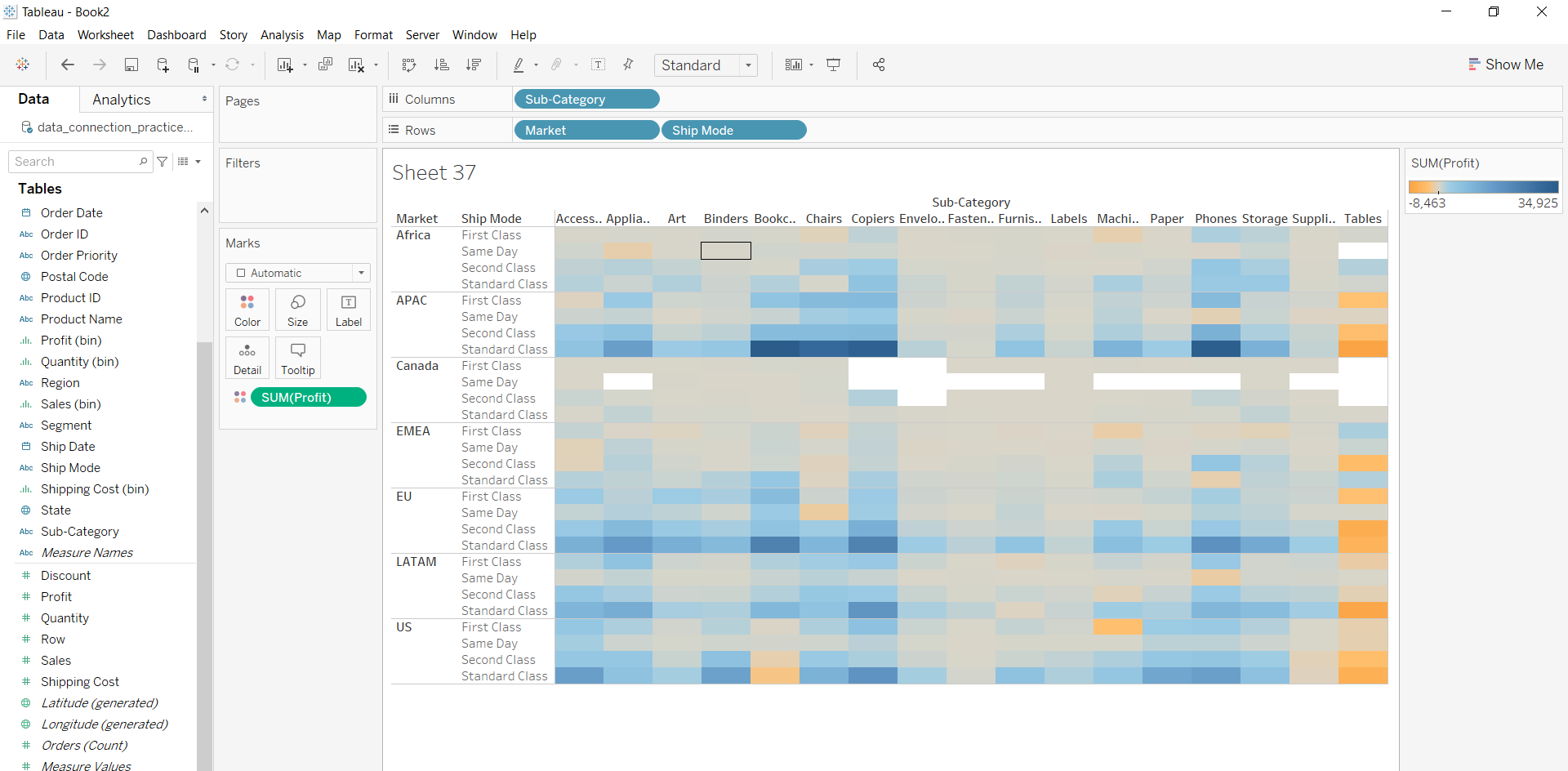
This comprehensive guide will walk you through the process of creating, customizing, and interpreting heatmap maps in Tableau, ensuring you can effectively leverage this visualization technique for your data analysis needs. We’ll cover everything from basic creation to advanced customization, providing practical examples and addressing common questions.
What is a Tableau Heatmap Map?
A Tableau heatmap map, also known as a density map, is a type of map that uses color gradients to represent the concentration of data points within specific geographic areas. Unlike traditional maps that use markers or symbols to represent individual data points, heatmap maps aggregate data and display it as a continuous surface of color. The intensity of the color corresponds to the density or frequency of data points in that area.
For example, imagine you’re analyzing customer locations. A heatmap map would show areas with a high concentration of customers in a darker, more intense color, while areas with fewer customers would be represented by lighter colors. This visual representation allows you to quickly identify hotspots and areas of interest.
- Quickly identify spatial patterns: Heatmap maps make it easy to spot trends and clusters that might be missed with other visualization methods.
- Visualize large datasets: They are effective for representing large numbers of data points without cluttering the map.
- Gain insights into density and concentration: They highlight areas with high or low concentrations of data, providing valuable insights for decision-making.
- Enhance data storytelling: Heatmap maps can be used to create compelling visual narratives that communicate spatial information effectively.
Creating a Basic Tableau Heatmap Map
Let’s walk through the steps of creating a basic heatmap map in Tableau using sample data. We’ll use a dataset containing geographic coordinates (latitude and longitude) and a measure representing the value we want to visualize (e.g., sales, customer count, incident reports).
-
Connect to Your Data: Open Tableau and connect to your data source. Ensure your data includes geographic fields (latitude and longitude) and a measure field.
-
Drag Geographic Fields to the View: Drag the ‘Latitude’ field to the Rows shelf and the ‘Longitude’ field to the Columns shelf. Tableau will automatically create a map view.
-
Change the Mark Type to Density: In the Marks card, change the mark type from ‘Automatic’ (usually a circle) to ‘Density’. This will transform the map into a heatmap.
-
Add the Measure to the Color Shelf: Drag the measure field you want to visualize (e.g., ‘Sales’) to the Color shelf. Tableau will automatically assign a color gradient to the data, with darker colors representing higher values and lighter colors representing lower values.
-
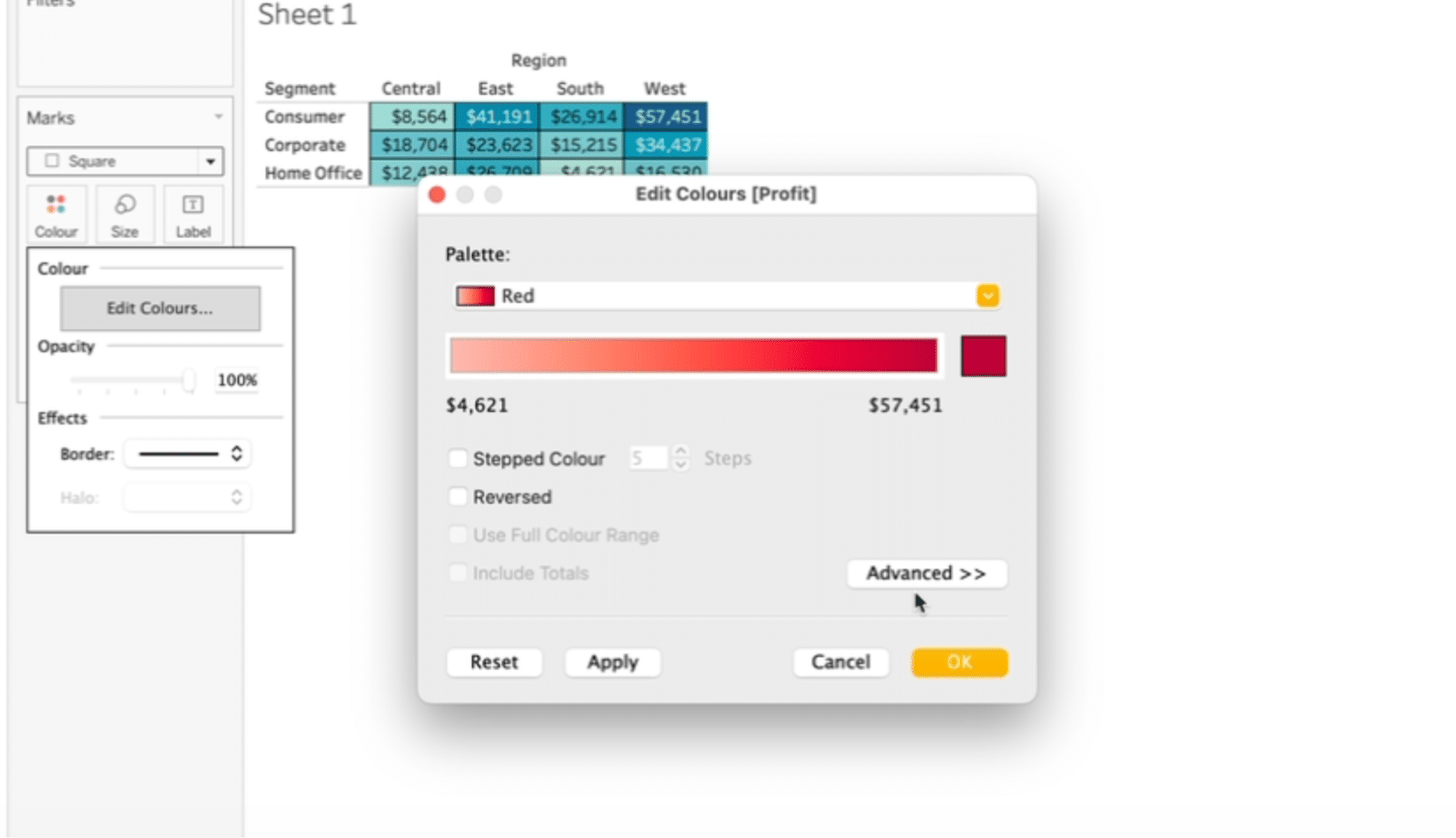
Customize the Color Palette: Click on the Color shelf to edit the color gradient. You can choose from a variety of pre-defined color palettes or create your own custom palette. Experiment with different palettes to find one that effectively highlights the patterns in your data.
Customizing Your Tableau Heatmap Map
Adjusting the Color Gradient
- Choose a Diverging or Sequential Palette: Diverging palettes use two contrasting colors with a neutral midpoint, while sequential palettes use a single color with varying intensity. Choose the palette that best suits your data.
- Step Colors: Instead of a continuous gradient, you can use stepped colors to create distinct color bands. This can be useful for highlighting specific value ranges.
- Reverse the Color Palette: If needed, you can reverse the color palette to change the direction of the gradient.
- Customize the Start and End Colors: You can specify the exact colors you want to use for the start and end of the gradient.
Adding Tooltips
Tooltips provide additional information when you hover over a specific area on the map. You can customize the tooltips to display relevant data fields and calculations.
- Add Fields to the Tooltip: Drag the fields you want to display in the tooltip to the Tooltip shelf.
- Format the Tooltip: Click on the Tooltip shelf to edit the tooltip text. You can format the text, add labels, and include calculations.
Filtering and Highlighting Data
Filtering and highlighting can help you focus on specific subsets of your data and identify important trends.
- Apply Filters: Use filters to restrict the data displayed on the map based on specific criteria.
- Highlight Data: Use highlighting to emphasize certain areas on the map based on selected data points.
Advanced Heatmap Map Techniques
Beyond the basics, Tableau offers several advanced techniques for creating more sophisticated heatmap maps.
Using Calculated Fields
Calculated fields allow you to create new measures based on existing data fields. This can be useful for calculating density ratios, creating custom indices, or performing other data transformations.
For example, you could calculate the density of customers per square mile by creating a calculated field that divides the number of customers by the area of the geographic region.
Combining Heatmap Maps with Other Visualizations
You can combine heatmap maps with other visualizations to create more comprehensive dashboards. For example, you could combine a heatmap map with a bar chart showing the total sales in each region.
Using Custom Geocoding
If your data includes custom geographic regions that are not recognized by Tableau, you can use custom geocoding to map those regions.
People Also Ask: Addressing Common Questions
How do I change the color scheme of my heatmap map?
To change the color scheme, click on the ‘Color’ shelf in the Marks card. This will open the ‘Edit Colors’ dialog box. Here, you can select from a variety of pre-defined color palettes, create your own custom palette, reverse the palette, and adjust the color steps. Experiment with different options to find a color scheme that effectively highlights the patterns in your data.
How do I add labels to my heatmap map?
While heatmap maps primarily rely on color intensity for visual representation, you can add labels to provide additional context. Drag the field you want to use as a label to the ‘Label’ shelf in the Marks card. You can then customize the appearance of the labels by clicking on the ‘Label’ shelf and adjusting the font, size, and alignment.
How do I filter my heatmap map to show only specific regions?
To filter your heatmap map, drag the field representing the region to the ‘Filters’ shelf. This will open the filter dialog box. Here, you can select the specific regions you want to include in the map. You can also use advanced filtering options, such as wildcard filters or conditional filters, to further refine your selection.
How do I create a heatmap map with multiple layers?
Tableau doesn’t directly support multiple heatmap layers on a single map. However, you can achieve a similar effect by using dual-axis maps or by combining heatmap maps with other types of maps. For example, you could create a dual-axis map with a heatmap layer showing density and a symbol map layer showing the location of specific points of interest.
How do I handle missing data in my heatmap map?
Missing data can affect the accuracy and clarity of your heatmap map. Tableau provides several options for handling missing data, such as filling in missing values with a default value, excluding missing values from the map, or interpolating missing values based on surrounding data points. Choose the option that best suits your data and analysis goals.
Best Practices for Creating Effective Heatmap Maps
- Choose the Right Color Palette: Select a color palette that is appropriate for your data and analysis goals. Avoid using palettes that are difficult to interpret or that may be misleading.
- Use Appropriate Data Aggregation: Ensure your data is aggregated at the appropriate level of granularity. Over-aggregation can obscure important patterns, while under-aggregation can create a cluttered and confusing map.
- Provide Clear Labels and Tooltips: Use clear and concise labels and tooltips to provide additional context and information to your audience.
- Avoid Overcrowding the Map: Avoid adding too many elements to the map, as this can make it difficult to interpret. Focus on highlighting the most important patterns and trends.
- Test and Iterate: Experiment with different customization options and solicit feedback from others to ensure your heatmap map is clear, accurate, and effective.
Conclusion
Tableau heatmap maps are a powerful tool for visualizing spatial data and identifying patterns and trends. By following the steps and best practices outlined in this guide, you can create effective heatmap maps that provide valuable insights for your business. Remember to experiment with different customization options and iterate on your designs to ensure your maps are clear, accurate, and insightful. With practice, you’ll be able to leverage the power of heatmap maps to unlock the hidden potential in your spatial data.
Whether you’re analyzing customer demographics, tracking disease outbreaks, or monitoring environmental conditions, heatmap maps can help you gain a deeper understanding of the world around you.
By mastering the techniques described in this guide, you’ll be well-equipped to create compelling and informative heatmap maps that drive better decision-making and improve your organization’s performance.
Continue to explore the advanced features of Tableau and experiment with different visualization techniques to further enhance your data analysis skills. Happy mapping!